
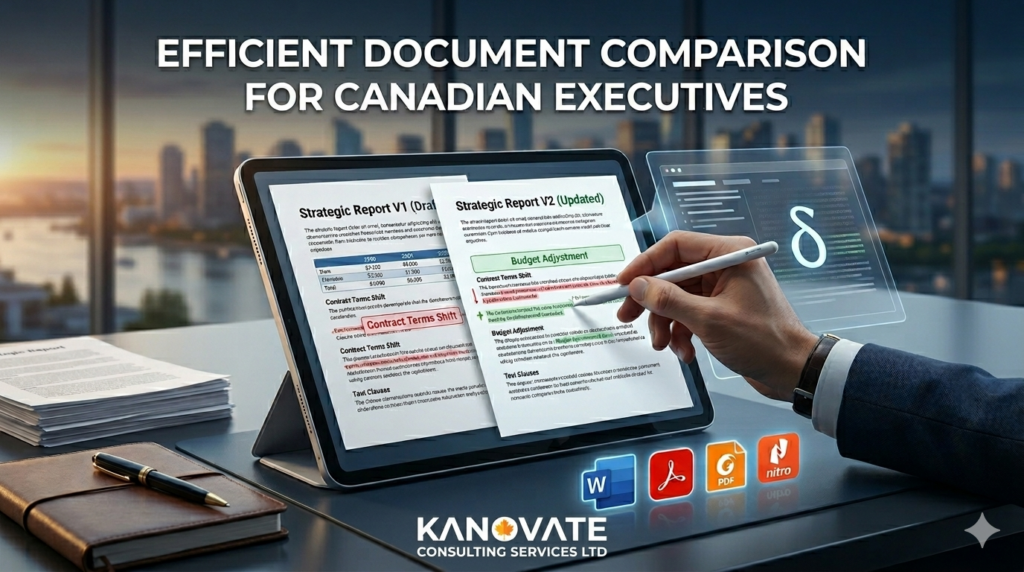
At Kanovate, we aim to provide you with the strategic clarity needed to scale your venture. Throughout our partnership, you will receive various drafts of market entries, strategic plans, and financial forecasts. Ensuring you understand the precise evolution of these business reports is crucial for risk management and efficient decision-making.
Comparing document versions manually is a significant drain on executive time and is highly prone to human error. To expedite your review process, we have compiled this guide on how to utilize the built-in comparison tools within the software you already use.
Why Document Comparison is Critical for Leadership
As a Canadian business leader, you cannot afford to miss subtle changes in contractual terms or financial data. Automated comparison provides:
- Risk Mitigation: Instantly spot if standardized legal clauses have been altered without notice.
- Version Clarity: Confirm that the feedback from the previous round of revisions was implemented accurately.
- Time Efficiency: Focus your attention only on the added, deleted, or changed text, rather than re-reading entire documents.
How to Compare Your Reports
Most of our deliverables are provided in Microsoft Word (.docx) or PDF format. Here is how to run a comparative analysis in the most common business applications.
1. Microsoft Word (Best for Drafts & Strategy Plans)
If you are reviewing an early-stage plan, Word’s native comparison tool is the industry standard for text changes.
- The Process: Open Word and navigate to the Review tab. Click Compare and select Compare two versions of a document. Choose your “Original” (the older file) and “Revised” (the newer file) documents. Word will generate a third document showing a “redline” of every change.
- Video Instruction: How to Compare Two Word Documents
2. Adobe Acrobat Pro (Best for Finalized PDF Reports)
For finalized market research, data summaries, or legal PDFs, Adobe Acrobat Pro offers a robust tool that compares both text and visual elements (like charts or images).
- The Process: Open Acrobat and go to Tools > Compare Files. Select your two PDF versions and click Compare. The software provides a summary of all deviations and a side-by-side view with visual overlays of the changes.
- Article Instruction: How to Compare Two PDF Files (Adobe Official)
3. Foxit PDF Editor
Foxit is known for speed and is a popular, lighter alternative to Adobe in many enterprise environments.
- The Process: Open Foxit and navigate to the View tab. Select the Compare button. It provides a straightforward interface to select your files and generates a color-coded delta report.
- Article Instruction: Comparing PDF Files (Foxit Support)
4. Nitro PDF Pro
Nitro is another high-performance PDF utility used widely in the Canadian business sector for document review.
- The Process: Click the Review tab and choose Compare. Nitro allows you to select whether you want to compare “Visual” changes (best if the layout has shifted) or “Textual” changes (best for report content review).
- Article Instruction: Compare PDF Files (Nitro Knowledge Base)
Best Practices for Your Review
- Read the Executive Summary first: We always put the most important findings on the first page.
- Use Search: Don’t read 30 pages if you only need to check the “Projected Growth” section. Search for that specific phrase.
- Ask Why: If you see a major change in a redline comparison, feel free to reach out. We’re happy to walk you through the “why” behind any shift in strategy.